Want to add games to R36S beyond what comes preloaded? The R36S already ships with thousands of titles, but one of its best features is that you can add your own. If you have a favorite that is not included, here is exactly how to get it onto your console — no technical skills required.
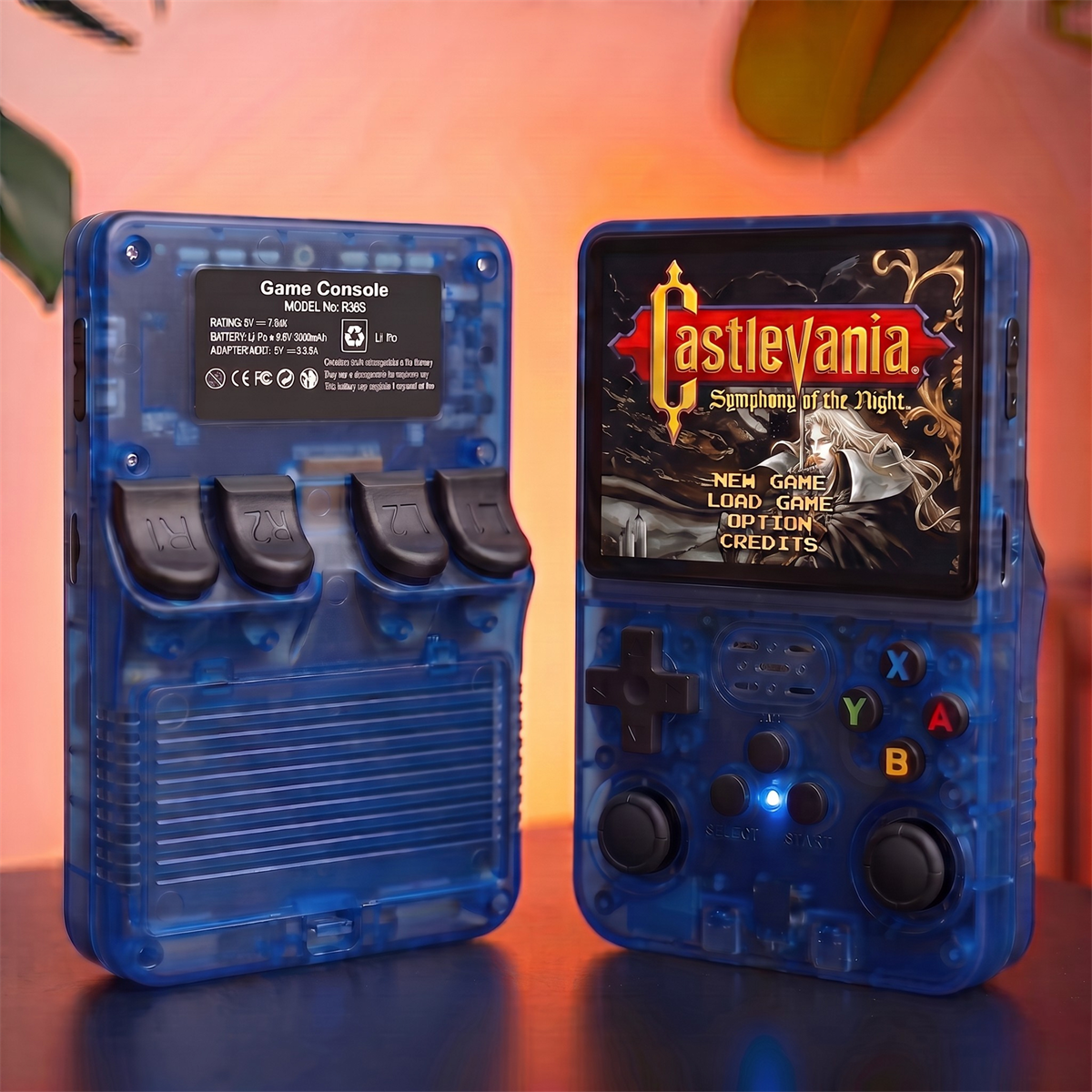
How to Add Games to R36S: Quick Overview
In short, to add games to R36S you copy your game files onto the MicroSD card, drop them into the folder for the matching console, then reinsert the card and power on. The five steps below cover the full process from start to finish.
What You Will Need
- Your R36S and its MicroSD card
- A computer with a MicroSD card slot (or a USB card reader)
- The game files you legally own, ready to copy
Step 1: Power Off and Remove the MicroSD Card
Turn the console off completely, then gently push in and remove the MicroSD card from its slot. Removing it while the device is on can corrupt files, so always power down first.
Step 2: Connect the Card to Your Computer
Insert the MicroSD card into your computer using a built-in slot or a USB adapter. It will appear as a removable drive, and you will see folders organized by console.
Step 3: Find the Right Console Folder
Each system has its own folder — for example, SNES games go in the SNES folder, PS1 games in the PS1 folder, and so on. Putting a file in the wrong folder is the number one reason games do not appear, so match them carefully.
Step 4: Copy Your Game Files
This is the step that actually lets you add games to R36S: drag and drop your game files into the matching folder. That is it — no installation, no conversion, just a simple copy. Wait for the transfer to finish completely before ejecting.
Step 5: Eject, Reinsert, and Refresh
Safely eject the card from your computer, slide it back into the powered-off R36S, and turn it on. Your new games will appear in the right console category. If they do not show immediately, refresh the game list or restart the console.
Troubleshooting Tips
- Game missing? Double-check it is in the correct console folder.
- Card not reading? Reinsert it fully until it clicks.
- Want more space? Swap in a larger MicroSD card and copy the existing folders over.
A Note on MicroSD Cards and File Sources
The R36S reads game files from a standard MicroSD card, the same removable storage used in cameras and other handhelds, so any standard card reader works for this process. Only copy game files you legally own, such as backups of your own physical game collection.
If you ever want to start fresh, you can also reformat a new MicroSD card with the same folder structure as the original and copy your library back across — a handy way to add games to R36S in bulk or upgrade to a larger card.
New to the device overall? Start with our complete R36S overview.
Frequently Asked Questions
Can you add your own games to the R36S?
Yes. You copy game files onto the MicroSD card and place them in the matching console folder, and they appear automatically in the menu.
What MicroSD card does the R36S use?
The R36S uses a standard MicroSD card. You can use the included card or a larger one for more storage.
Do I need special software to add games?
No special software is required. You simply drag and drop the files into the correct folder using your computer file manager.
Why is my new game not showing up?
Make sure the file is in the correct console folder and the card is reinserted fully. Restarting the console or refreshing the game list usually makes it appear.